Showing posts with label Oracle. Show all posts

Wednesday, June 13, 2012

URGENT BULLETIN: Disable JRE Auto-Update for All E-Business Suite End-Users

Urgent update sent out by Steven Chan, EBS Application Technology Director. His message is posted below
From: "Steven Chan"
Date: June 13, 2012 14:32:07 EDT
To: "Steven Chan"  
Subject: URGENT BULLETIN: Disable Java JRE Auto-Update for All E-Business Suite End-Users Immediately
Reply-To: 

All EBS desktop administrators must disable JRE Auto-Update for their end-users immediately. See this externally-published article:
Why is this required?
If you have Auto-Update enabled, your JRE 1.6 version will be updated to JRE 7.
  • This may happen as early as July 3, 2012.
  • This will definitely happen after Sept. 7, 2012, after the release of 1.6.0_35 (6u35).
Oracle Forms is not compatible with JRE 7 yet. JRE 7 has not been certified with Oracle E-Business Suite yet. Oracle E-Business Suite functionality based on Forms -- e.g. Financials -- will stop working if you upgrade to JRE 7.
Related News
Java 1.6.0_33 is certified with Oracle E-Business Suite. See this externally-published article:

Distribution
  • This email may be distributed to customers.
Regards,
Steven
....................................
Steven Chan
Sr. Director, Applications Technology
Oracle E-Business Suite Development
E-Business Techstack Blog: http://blogs.oracle.com/stevenchan

Tuesday, May 18, 2010

How to reconfigure Oracle Enterprise Manager on Linux


I was unable to connect to Enterprise Manager Console for the last one week. I had tried out everything that I could search for from the web, but nothing seemed to work. I was able to start the dbconsole, connect, but it would give me a message stating "Enterprise Manager could not to connect to the database". Finally, in sheer desperation,I thought of dropping and recreating the EM. I chanced upon a well written article, by MacLochlainns, (See References below) on recreating the EM in windows. Although, I am running on Linux, I was sure, the commands would be same or similar. It turned to be the same!. In fact, I did not face any of the problems mentioned in his blog (Point # 7). Users, SYSMAN and MGMT_VIEW, the PUBLIC Synonyms setemviewusercontext & mgmt_target_blackouts and the role mgmt_user, were all automatically dropped,.
Other than that, rest of it, I just followed his instructions and I have the EM running. Thanks a lot MacLochlainns
The commands I used, are listed below:
Start the Oracle Listener and Database
emca -deconfig dbcontrol db -repos drop
Once the above command finishes, run the following one:
The emca command required me to enter Oracle SID, Listener port; passwords were keyed-in without using double or single quotes (again there was a difference between my reconfiguration and  MacLochlainns web article). In other words, key-in just the passwords, encasing them within double quotes is not needed. 
Finally, I accepted default values for Email notifications, Outgoing Mail Server for notifications, and I was done.

emca -config dbcontrol db -repos create
Important: Backup emkey.ora, since the database is kept in encrypted mode. If the key gets corrupted then, all the data will be lost.
once it is completed, test run it by logging onto the Enterprise Manager console.

References :-

How to reconfigure Oracle Enterprise Manager on Windows | MacLochlainns Weblog
Oracle's page on Enterprise Manager Configuration Assistant (EMCA)

Saturday, May 15, 2010

Errorlogging Clause in 10.1 and above


I was working on the Errorlogging clause in the Insert statement which can be used to capture errors that may occur while inserting, and I noticed that Errorlogging clause does not automatically create an error logging table, if it is not specified. I was trying this using SQLDeveloper, so was not sure whether it was a bug in the SD or not. To test it, I ran it using SQL*Plus.

Here is the Insert statement with Error logging clause

Log Errors Syntax (Screen -01)
Since it appeared that Error log table can be optional, I decided to omit and run the Insert statement. However, Oracle returned an Error (Screen -02)

Not mentioning table is Not an option (Screen -02)
So, decided to follow the textbook approach and created the errorlog table (Screen -03)

Created Error Log Table (Screen -03)

As you can see from the screen below, the procedure got executed successfully (Screen -04)

Procedure to generate Error (Screen -04)

The data got inserted into the Err$_Employees Table (Screen -05). So, I think I might have hit into a Bug, however, I am still researching about it.
Data Inserted Into Error Log Table (Screen -05)


References:  

Click here to view Insert Statement
Click here to view DBMS_ERRLOG Statement

Click here to view well written example @orafaq.com
Bug: Could not find any bug other that this old one in Metalink # Bug 5255455

Sunday, May 9, 2010

Date display in Oracle/SQLDeveloper


    A post in OTN forum (forum question was, How can I tell SQL Developer to always display datetime values in full?) asked how SQLDeveloper will display "Hours & seconds" in a "DATE" datatype, when the data entered is Date with no time component. Will it error out or will it display '00:00:00"? To this, I was certain, SQLDeveloper would gracefully display the timestamp at midnight. However, to prove it, I have to key-in data in date column and display them.
Before we get to that, let us first understand how Oracle stores DATE datatype.
Oracle stores date in 7 bytes (Ref: Oracle Advanced Application Developer's Guide. to access click here) Quote: Oracle Database stores dates in its own internal format. Date data is stored in fixed-length fields of seven bytes each, corresponding to century, year, month, day, hour, minute, and second. End Quote
So let us get back to SQLDeveloper and analyze how it displays date datatype
I would use the seeded table EMPLOYEES which has "hire_date" column defined as DATE datatype for demonstration purposes.
Emp table Columns and Datatypes (Screen -01)

Let us take an internal dump of the date and display the data (Screen -02)

Data Display (Screen -02)
As you can see in the above screen, SQLDeveloper displays all Hire_date column data with the time component. How does it do it, when the data keyed in does not contain time component? Well, if the data does not contain time details, then Oracle stores it as 12:00:00 AM.
A brief note on the Datadump column:-
Let us take line # 6 and analyze. 120 represents Century, 109 represents Year (both are displayed as 100+Century/100+Year), then comes the month, and date. Next you would see 1,1,1 which represents the time portion (or in other words the time here is 12:00:00 AM). Time is stored as (HH+1),(MI+1),(SS+1) and displayed as 12+(HH-1) and so on. For example Line # 3 diplays 23-FEB-2010 06:34:12 AM and is stored as CC=(100+20), YY=(100+10), MM=2, DD=23, Hours=7 (6+1), Minutes=35(34+1), Seconds=13(12+1).


Why Century and Year are stored in excess 100 notation? so that we can represent BC numbers. If you look at Line # 4, you would notice that for Century and Year column the value is less that 100. That is because, the data represents BC.90-100=-10, the century inserted and the negative value will tell Oracle that it is a BC and not AD.Another point is that, we know that BC 1010 is greater than BC 1011 (line # 5). So it works  perfectly well in binary sorting too.

So, to conclude, there is absolutely no issues in displaying date by SQLDeveloper

Wednesday, May 5, 2010

Oracle Learning Library


Thanks to Sue's post (click here to read her post), I learned that, Oracle has introduced a Learning Library, includes online demonstrations, including APEX tutorials and SQLDeveloper demos. Truly worth watching. Click here to go to Oracle Learning Library. It is easy to search either by Product or by Category. For example to find out how to use SQLDeveloper for Microsoft Access, you would select "Database" under the "Category" and "SQL Developer" under "Product Component" and system provides a search output as shown below. Click on hyperlink under the column "Title" and a new window is launched displaying the Demo.


Thursday, April 29, 2010

Search and Highlight in SQLDeveloper

Search & Highlight -1

I stumbled upon by chance, on a nice cool feature in SQLDeveloper - Search and Highlight rows. Run a Query, by pressing F9 and place cursor in the result window. Now press CTRL & F together, you would a popup window. Type a search text ( I typed 'Toibas' and clicked on  "Highlight", on the top. It would enable "Persist Highlight" and "Highlight Row" (See Search & Highlight -1 above). Check both of them and you would see a result as shown below (Search and Highlight Screen 2)
Search and Highlight -2

Monday, April 26, 2010

11g Default Schema & Scott Schema

11g comes with quite a number of demo schemas (seeded tables which can be queried to understand /Learn various SQL commands). To know more about it, go to: Download Oracle Schema
Scott User which used to come unlocked and OPEN in every version, is no longer the case. You need to manually unlock the user. To learn more about SCOTT Schema go to: http://wiki.oracle.com/page/scott%2Ftiger  

To learn about installing Sample schemas in 10g, go to :- Installing Sample Schema's
Sample Schemas reside under $ORACLE_HOME/demo/schema.  Demobld.sql resides under $ORACLE_HOME/sqlplus/demo

Saturday, April 24, 2010

SP2-0027 error in SQLPLUS


Screen -1
While running a script, from SQLPLUS, I came across an error: "SP2-0027: Input is too long (> 2499 characters) - line ignored" (Screen -1) - even though I had already run SET SERVEROUTPUT ON SIZE UNLIMITED.
There is a lengthy discussion on resolving this at tom kyte's website - click here to go there. However, I ran the same script under SQLDeveloper, it worked! (Screen-2). Now, that's an easy solution :-)

Screen -2
To download SQLDeveloper click here

Thursday, April 22, 2010

How to set login preferences (SQLDeveloper)?

Screen-1
Although, setting login preferences for SQLDeveloper v2.1.1.64,is straight-forward, it just doesn' t seem to work.
To set login preference for goto Tools --> preferences; select database, click on browse to choose the login you have just created and you are done (see Screen -1 above).
After setting the preferences, I ran the following SQL: "exec DBMS_OUTPUT.PUT_LINE ('1234567890123456789012345678901234567890');" and ran the script. The script output window display is shown below (Screen -2). hmm, not what I expected.
Screen -2
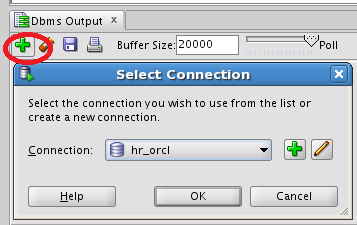
I opened the DBMS Output window (Screen -3) (navigation View-->"DBMS Output") and reran the above window, only to end up with same results as displayed above - no luck again.
Screen -3

So, I ran the command SERVEROUTPUT manually and ran it - success!  Unfortunately, Session parameters seems to be manually run each time a you run a script and does not get set automatically. you can see the results in (Screen -4).
Screen -4

How to set login preferences (for SQLPLUS)?

I am too lazy to keep setting debugging messages or pagesize for every session in SQLPLUS. Also, I would like to set the SQLPROMPT look much like the UNIX Prompt. There are essentially two places where I can do it. Either use a file glogin.sql (oracle creates a glogin.sql file - nothing but a shell - at $ORACLE_HOME/sqlplus/admin ) or create a login.sql at the directory where I start sqlplus.
Note: In order to change glogin, super user access is needed. If you do not have super user access, create a login.sql at a local directory.

To display debugging messages on, use SET SERVEROUTPUT ON
To set the output size (below 10g) SET SERVEROUTPUT ON SIZE 10000. (for 10g & above), it is "SET SERVEROUTPUT ON SIZE UNLIMITED
To set the sqlprompt, enter SET SQLPROMPT "Srini" - the value given between the double quotes is displayed as SQL Prompt. If you want it to be generic, then type, SET SQLPROMPT "_USER'@'_CONNECT_IDENTIFIER _PRIVILEGE >"
The above command displays the user, database name, connected (sysdba or normal)
Screen shot of my glogin.sql (Screen -1) is displayed below:


After modifying the login file, the effects are shown in the Screen -2 & Screen -3.


Note: If the SERVEROUTPUT is not set right, Oracle will raise ORA-20000 error as shown below (Screen -4):


References: To learn more about SQLPLUS commands click here

SQLDeveloper copying Connections.xml

Sharing connections across the team members in SQLDEVELOPER is a breeze.
Step1: get the connections.xml from any one of the users and copy to your local directory (In Linux it is found at .sqldeveloper/system2.1.1.64.45/o.jdeveloper.db.connection.11.1.1.2.36.55.30/ directory).

Step 2: When I started the SQLDEVELOPER (if you want to know how to add SQLDEVELOPER to your linux menu click here), and clicked on one of the connections that appears on the left, I got an error (Screen 01)


A little investigation showed that I had missed setting the ORACLE_HOME variable correctly. After correcting this, reclicking on the connection I got ocijdbc11.in.java not in library path (Screen -2)

Step 3:
 If I select connection type as Basic (instead of TNS), and the enter values needed, I am connected!. (Screen -3)

Wednesday, April 21, 2010

SQLDeveloper: Sharing Shortcuts across the team

SQLDeveloper has an utility to export the short-cuts. It is an excellent way to ensure that short-cuts, are kept uniform, can be shared across the team. I have listed below steps to export the preferences and import them back.
1) Navigation: Tools-->Preferences (Screen -1)


2) Select Shortcut Keys (Screen -2)


3) Click on More Actions and select Export in the drop-down list (Screen -3)


4) Select the directory to save the file (Screen -4)

5) Importing the preferences is similar; follow the steps 1 & 2 and in step 3, select "Import" instead of "Export" and select file to import. (screen -5)


6). An confirmation window will appear (Screen -6), click on "yes" and the Short-cut preferences will be imported.

Monday, April 19, 2010

ORA-01427: single-row subquery returns more than one row

I faced today, "ORA-01427:sub-query returns more than one row" error. The problem is easy to identify:This error is raised, when a sub-query returns more than one row to an Equality or in-Equality operator. The reason being there are restrictions on the legal comparison operators (Screen -1).


For any comparison operator listed in the table shown below, the sub-query must return single row (in other words, the sub-query, must be a single-row sub-query, otherwise it will fail)
Single-row Sub-query Operators
Symbol Meaning
= equal
> greater than
>= greater than or equal
< less than
<= less than or equal
<> not equal
!= not equal

The operators in the following table can use multiple-row sub-queries:
Multiple-row Sub-query Operators
Symbol Meaning
IN equal to any member in a list
NOT IN not equal to any member in a list
ANY returns rows that match any value on a list
ALL returns rows that match all the values in a list

There are several approaches to resolve this, most popular one being changing the inequality operator to a multiple-row operators (say, if the operator is "=" than change it "IN", "ANY", "ALL", so that it does not matter if multiple rows are returned.).
However, I found that if you use inline views, you can retain inequality operator as shown below in (Screen -2)
Note: In order to get consistent result, use the sub-query based on primary key. The above method is based on unique key

Sunday, April 18, 2010

Insight Feature

I noticed that in SQLDeveloper, the insight feature has a pretty cool feature, in that, you can select, "auto generate GROUP BY Clause" (Screen -1). What this means, is that when you change your select columns, SQLDeveloper will automatically generate the columns in the GROUP BY clause for you (Screen -2). Navigation: Tools-->Preferences. Expand Code Editor. Click on "Completion Insight" and ensure that the Check box for "Autogenerate GROUP BY Clause" is selected.


Bug: However, Insight adds another column, if you add another GROUPING Function. If executed as it is, it will result in ORA-00904 error (Screen - 3)

Saturday, April 17, 2010

Drag & Drop to create query

SQLDeveloper keeps amazing me. I can easily create a query by merely selecting columns I need on the left pane and drop it in the SQL Window to create a query. Here are the steps I followed to create a query
(I have already created a connection and been able to successfully connect to SQLDeveloper, organized the logins into folders). The initial screen will look like Screen -1


Open a New SQLWorkSheet by clicking on the SQL ICON (Screen-2)


A popup window will open up (Screen -3)

Select the columns you need (either by pressing SHIFT and Left Mouse Click or (as I did) CTRL+ Left Mouse click) and drag them into the SQL Window (Screen -4)

result is displayed as shown in Screen -5.


Bug-01: There is a minor bug in this version (2.1.1.64). Let us say there is a query already existing the query window like above. You click on the left pane to select a few columns; Drag them into SQL Window and a popup window appears, where you would have to choose amongst "Insert/Delete..." and after making your selections, instead of clicking on apply, you change your mind and click on "cancel", the query still gets copied to the SQL Window (Screen-6a, Screen-6b)


Note: This does not happen if there is no query in the SQL Window
Bug-02: Selecting "Join" has no effect.
SQLDeveloper is an excellent product. Would like to see it even better.

conversion differences between TO_NUMBER and TO_CHAR

It was interesting to note that what works in TO_CHAR conversion does not in TO_NUMBER. For TO_CHAR, I passed 12.56 for parameter1 and '999.9' for parameter2. It returned 12.6(has obviously rounded it up. Whereas, try it for TO_NUMBER, ORACLE returned an error ORA-01722

Friday, April 16, 2010

SQL Developer History

SQL Developer History
History of commands is handled very well in SQLDeveloper. Pressing F8 will display the history of sql commands that has been issued till now. Place the cursor in the SQL Window, and press "Ctrl+Up arrow" or "Ctrl + down arrow", to paste commands in the history tab into the SQL Window. This works very well, except for the last row or the first row, when the up or down arrow will takes me nowhere. For either of these two situations, I either grab the SQL, from the History window, with cursor and drop it in the SQL Window; or, go down/up a row in the History window and press the "Ctrl+Up" or Ctrl+dwn" key.

Thursday, April 15, 2010

SQLDeveloper & 11g Hierarchical Profiler

11g's introduces heirarchical profiler (to learn about Heirarchical profiler click here) . SQLDEVELOPER has a tab which displays profiler details
However, the first time I tried to run it from SQLDeveloper, I came across a waring/error viz; tables/directory missing ( the error was something like this: "Required tables DBMSHP_FUNCTION_INFO,DBMSHP_PARENT_CHILD_INFO,DBMSHP_RUNS missing")
So I logged in as SYS, created PLSHPROF_DIR and granted READ,WRITE access on this directory to "srini" user.
commands I used are given below:

CREATE OR REPLACE directory PLSHPROF_DIR as '/tmp/Oraprofiles';
grant READ, WRITE on directory PLSHPROF_DIR to Srini;
grant execute on DBMS_HPROF to Srini;
grant create table to Srini;
grant create sequence to Srini;
grant unlimited tablespace to Srini;

finally ran the script ran the script dbmshptab.sql
Rerunning the test procedure provided me the profiler results shown above.

Sunday, April 11, 2010

How to add SQLDEVELOPER to Linux Start Menu

How to add SQLDEVELOPER to Linux -GNOME- programs /start Menu? Well, I liked to have a shortcut to SQLDEVELOPER added to Linux Start Menu, similar to Windows  Programs Menu automatically. Since SQLDEVELOPER does not do that, we need to manually add an entry to the programs folder. (By the way, this procedure can be used to add any executable or shell program to the linux menu).

I have enclosed below screenshots to help understand the procedure.See


Screen-1


Click on New Item (Screen 2)

Screen-2
Third, Click on the Browse Button (Screen 3)


Screen-3

Fourth, navigate to the directory where SQLDEVELOPER.sh is kept (Remember to click on sqldeveloper.sh and not on exe; usually it will be located at $ORACLE_HOME/sqldeveloper and select sqldeveloper.sh (Screen -4)


Screen-4


This will bring you back to Screen 3. Now Click on "No Icon" button.  (Screen-5)


Screen-5

 Navigate to $ORACLE_HOME/sqldeveloper/sqldeveloper/bin and select splash.png (Screen-6)


Screen-6
Click OK, you will the program appear in the menu. (Screen-7)

Screen-7

When you click on the program you will see a screen like the one below (Screen-8)

Screen-8
Once launched, SQLDEVELOPER should look like the screen below (Screen-9)

Screen-9
Note: Since I have 11g installed and 11g comes with SQLDEVELOPER, I need to locate the latest SQLDEVELOPER. Used locate command to determine the path (see below). The first one is latest version.

Update: This has been published at Oracle SQLDEVELOPER tips & tricks as well Click here to goto SQLDEVELOPER Exchange